iOS Integration
Follow these steps to build the demo of the Ringer iOS app
Requirements
1. iOS version 13 or greater is required to use this sdk.
How to integrate the SDK into your application
Step 1
Please visit the Releases to get latest package. Add the package using swift package manager in to your project.
Step 2
Firebase is required to this SDK. If there is already an existing Firebase pod in the project, please uninstall it.
Step 3
Add delegate (ringerInteractiveDelegate) into file to access notifications on the target device.
Step 4
Configure Firebase using FirebaseApp.configure() Add GoogleService-Info.plist file downloaded from firebase configuration.
Step 5
Create the object of RingerInteractiveNotification.
let ringerObject = RingerInteractiveNotification()
Register notifications by using the RingerInteractiveNotification object name.
ringerObject.notificationRegister()
Add delegate to self.
ringerObject.ringerInteractiveDelegate = self
Step 6
Add contact usage description in Info.plist using the following lines:-
    <key>NSContactsUsageDescription</key>
    <string>Our application needs to your contacts</string>
Step 7
Login into the SDK by using RingerInteractiveNotification object (example below):-
ringerObject.ringerInteractiveLogin(auth: “API KEY”)
Step 8
Add these methods into AppDelegate to save and update contacts through notifications.
    func userNotificationCenter(_ center: UNUserNotificationCenter, willPresent notification: UNNotification) {
        ringerObject.ringerInteractiveGetContact()
    }

    func userNotificationCenter(_ center: UNUserNotificationCenter, didReceive response: UNNotificationResponse) {
        ringerObject.ringerInteractiveGetContact()
    }

    func application(_ application: UIApplication, didReceiveRemoteNotification userInfo: [AnyHashable : Any],fetchCompletionHandler completionHandler: @escaping (UIBackgroundFetchResult) -> Void) {
        ringerObject.ringerInteractiveGetContact()
        DispatchQueue.global().asyncAfter(deadline: .now() + 45.0) {
            completionHandler(.newData)
        }
    }
How to use sample app
1.Download the latest sample app on TestFlight
2.Build sample app from Ringer-Sample-App
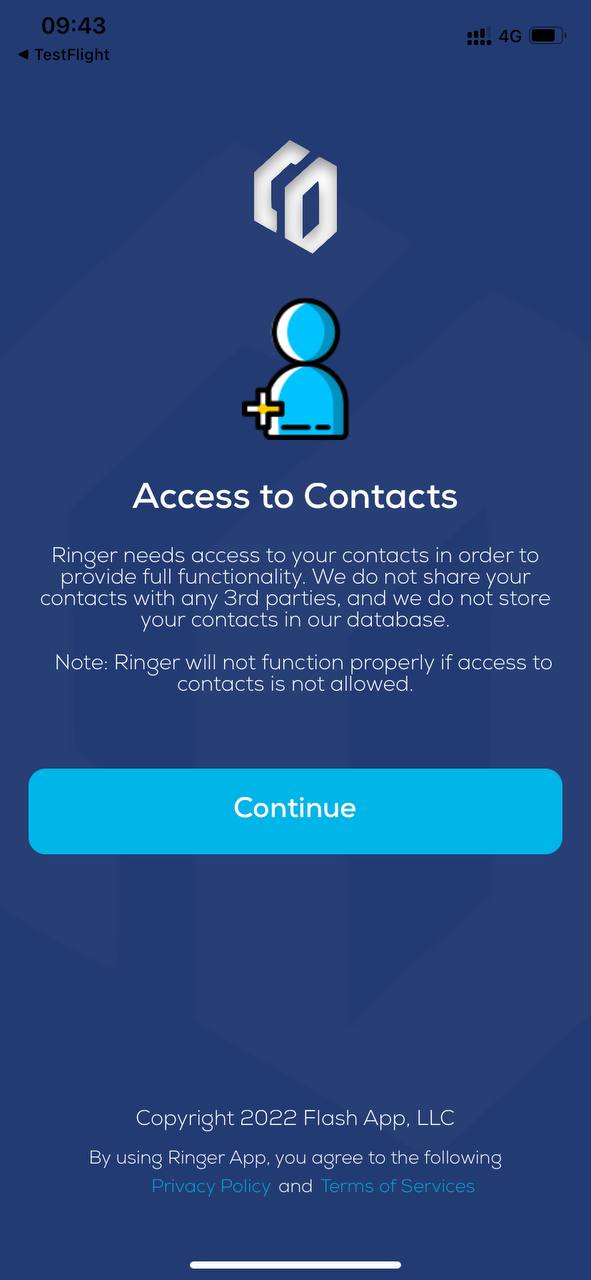
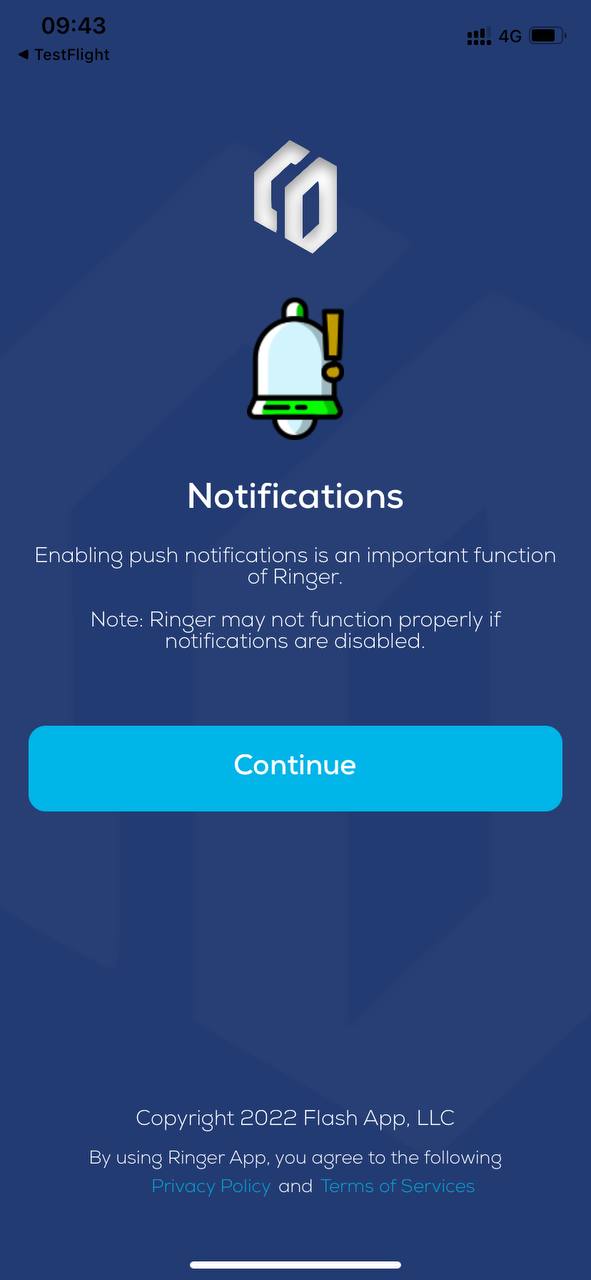
After install you should grant the required permissions
Access Contact
Allow app notification
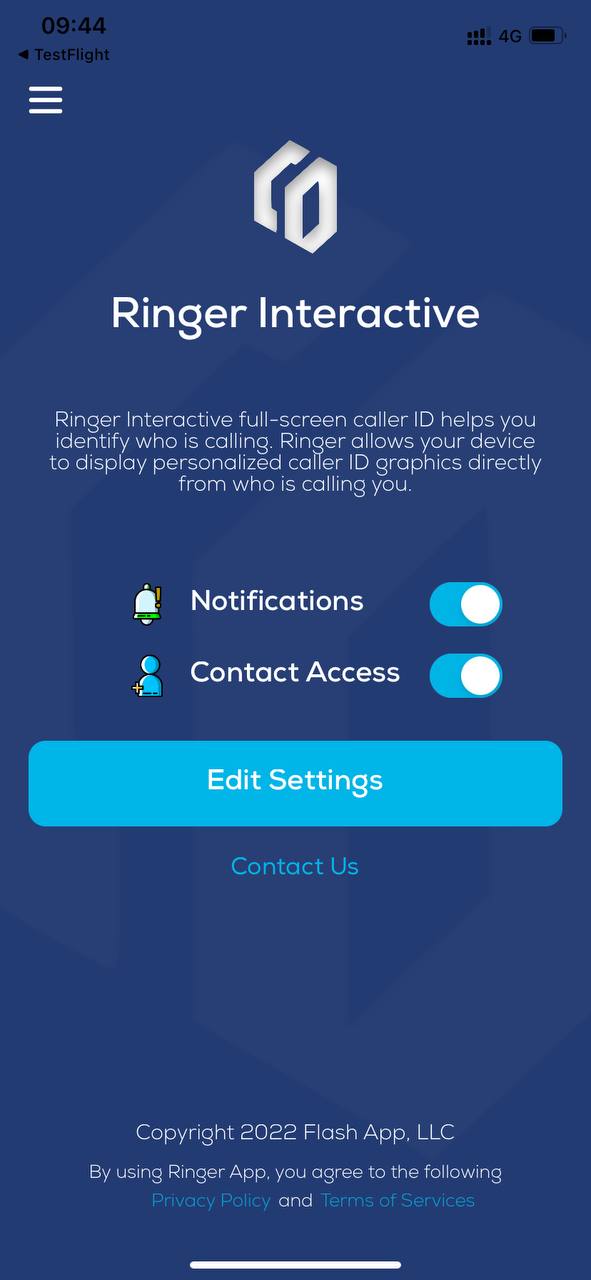
Main Screen
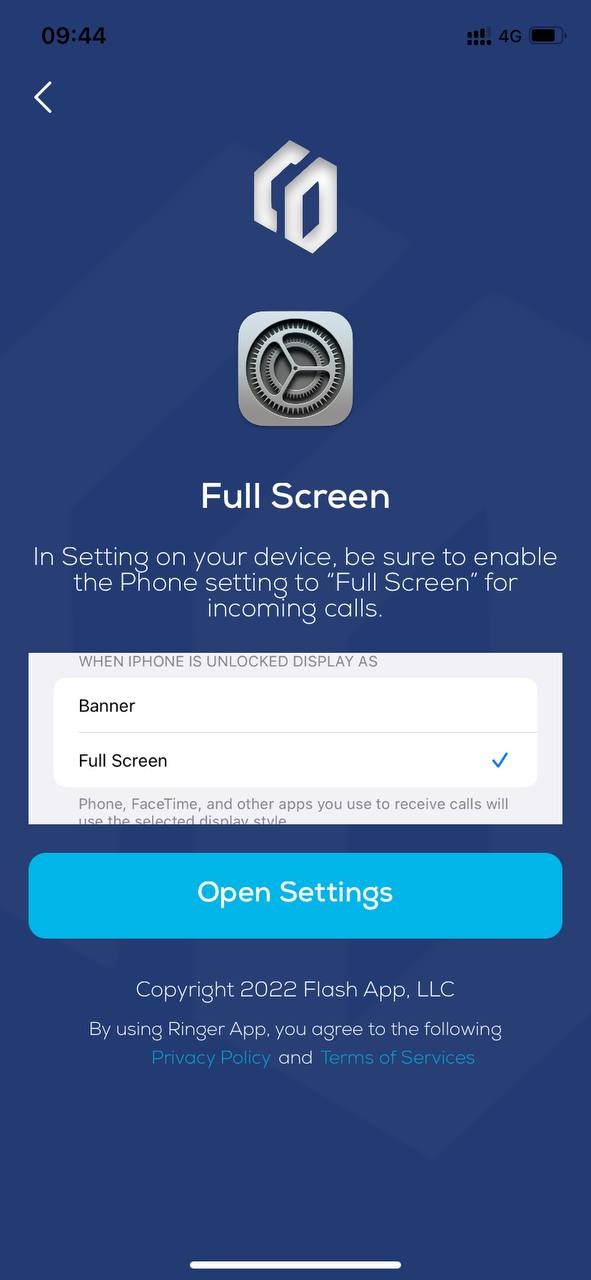
Full screen call
Open Admin portal with provide account and make phone call to test